Click on the below link
https://www.virtualbox.org/wiki/Downloads
Download Virtual box and its Extension pack
 Once you have installed create a New Virtual Machine
 Select windows 2008 64 bit
 Allocate a good portion of memory recommended 4GB
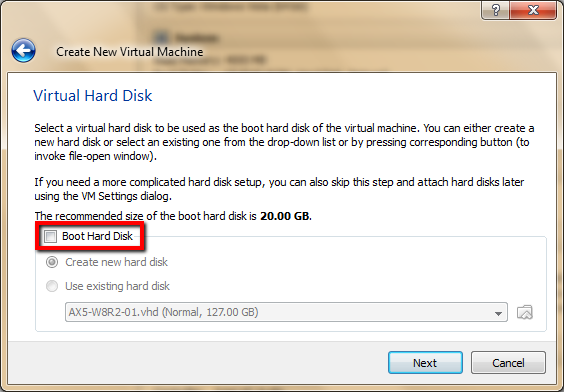
 Un-Tick the boot hard disk,Add disks manual after the wizard is finished
 Click on your new virtual image settings
 Navigate to storage,
Add Hard Disks by clicking on Disk icon - then choose existing Disk
Repeat these steps to all the three vhd files
AX5-W8R2-01.vhd
AX5-W8R2-01_DB.vhd
AX5-W8R2-01_PF.vhd
 After you have finished. Settings should look like this:


You can always reach me at axapta4all@gmail.com
Anonymous Axaptian



Add Hard Disks by clicking on Disk icon - then choose existing Disk
Repeat these steps to all the three vhd files
AX5-W8R2-01.vhd
AX5-W8R2-01_DB.vhd
AX5-W8R2-01_PF.vhd


Start your image

Configure sharepoint
After you have managed to get it to start, there are a couple other things to be aware of:
Start the AOS by going to the windows services and start manually
All seems to work except for Enterprise Portal
To fix this modify your hosts file “C:\Windows\System32\drivers\etc\Hosts”
Open this file with notepad and add in the line
127.0.0.1 Sharepoint
127.0.0.1 dynamicsax.contoso.com
It should look like this:

When you run a report - it will be slow on first run. Don't kill it; leave it for a few minutes. Mine took ~4minutes to run first time. After that, it is very responsive. Standard SSRS caching.
Update 07-10-2011:
RTM version of the image uses
127.0.0.1 dynamicsax.contoso.com

Copied 4m Munib Blog.
You can always reach me at axapta4all@gmail.com
Anonymous Axaptian
